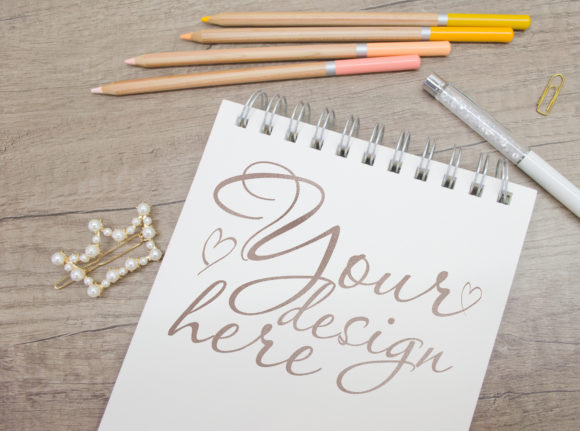
Stationery Flat Lay Mockup with Notepad Guide
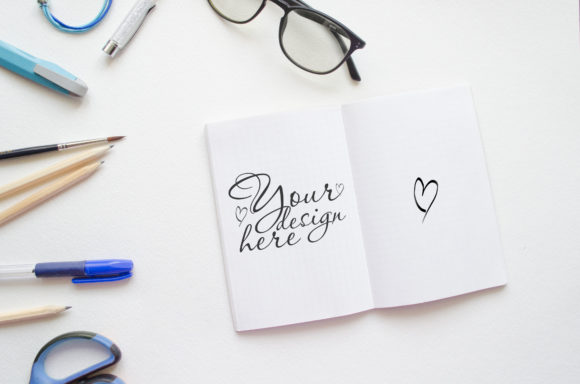
Flat lay photography has become a staple in visual communication, especially when you need to present products, ideas, or branding in a clean, relatable way. A stationery flat lay mockup with notepad is essentially a pre-designed scene that places a notepad at the center, surrounded by common office or school supplies like pens, paper clips, sticky notes, or a coffee cup. The one described here comes as a layered PSD file with a smart object for easy editing, plus a JPG version with white blanks for those who do not use Photoshop. You can drop your own design, logo, or artwork into the notepad area and instantly have a professional-looking flat lay image without staging or photographing anything yourself.
For many people, this kind of mockup saves hours of setup time, lighting adjustments, and prop sourcing. Instead of gathering physical items and shooting from above, you simply edit a smart layer and export. The result looks natural, polished, and suitable for social media, website banners, product listings, or printed materials. But whether this tool is right for you depends on your specific goals, skill level, and the kind of projects you handle.
Why different audiences care about this mockup
A flat lay mockup with a notepad serves different purposes depending on who you are. A beginner might see it as an easy way to create attractive visuals without learning photography or complex software. A professional designer might value the high resolution and layered file structure that fits into an existing workflow. An educator might use it to present course materials or lesson plans in an inviting format. A small business owner could repurpose the same template for social media posts, promotional graphics, or product packaging previews.
The flexibility of having both a PSD with a smart layer and a JPG with white blanks means that even people who have never opened Photoshop can still get a usable result. The JPG version allows you to print it out and draw or write directly on the blank area, then scan or photograph your work. That opens up possibilities for hands-on creators, kids, or anyone who prefers analog methods before digitizing.
Beginners and casual users
If you are new to design tools or mockups, the PSD file with a smart layer is straightforward. You open the file, double-click the smart object, paste your image or text, save, and the flat lay updates automatically. There is no need to understand masking, blending modes, or layer styles. The 3726x2467 pixel size at 300 dpi ensures that even if you zoom in or print the result, it remains sharp.
For a beginner, the main priority is usually ease of use and a polished outcome. The JPG with white blanks is even simpler: you can print it, fill in the notepad area by hand, and then scan or photograph the result for digital use. This approach works well for hobbyists, students, or anyone who wants a quick, tactile result without learning software.
If you are unsure whether the mockup fits your needs, ask yourself: Do I want a realistic flat lay look without buying props or learning photography? Do I need a template that works both digitally and in print? If yes, this type of mockup is a practical choice for you.
Experienced creators and designers
For graphic designers, content creators, and marketing professionals, the value of this mockup lies in speed and consistency. You can reuse the same template for multiple projects by swapping the smart layer content. The 300 dpi resolution and generous dimensions give you room to refine details, add textures, or apply adjustments without losing quality.
Experienced users often prioritize flexibility and reliability. The fact that the PSD is editable with a smart layer means you can change not only the notepad design but also the background color, shadows, or surrounding elements if the file allows it. Even if the mockup is fixed in composition, the smart layer system lets you maintain a consistent aesthetic across a series of posts or product images.
Consider a scenario where you run a small design studio and need to create mockups for client presentations. Instead of shooting new flat lays for each client, you adjust the notepad content, maybe tweak the overall tone, and deliver a professional visual in minutes. The commercial value is clear: you save billable hours and produce reliable results.
Educators and trainers
Teachers, course creators, and workshop facilitators often need visual aids that feel inviting and organized. A stationery flat lay mockup with a notepad can serve as a background for lesson covers, handouts, or social media announcements about upcoming classes. The school supplies in the scene reinforce a learning theme without extra effort.
For an educator, long-term usefulness matters. You might create a series of course modules and want each one to have a consistent visual identity. Using the same mockup template across multiple lessons creates a cohesive look that students recognize. The high resolution also means you can print materials like posters or flyers with confidence.
If you teach creative skills, you could use the JPG version as a hands-on activity: print the blank notepad page, have students sketch or write on it, and then share their work digitally. This blend of analog and digital use makes the mockup versatile beyond typical design tasks.
Small business owners and entrepreneurs
Running a business often means juggling multiple roles, including marketing. A flat lay mockup helps you produce on-brand visuals without hiring a photographer or designer. Whether you sell planners, stationery, digital products, or services, the notepad mockup gives you a ready-made scene that looks curated and professional.
The cost factor is relevant here. Investing in a single PSD file that you can reuse indefinitely is economical compared to commissioning custom flat lay photography for every new product or promotion. The JPG version adds even more value because you can involve team members or clients who do not use design software.
For an entrepreneur, speed is often critical. You might need to post on social media daily or update your website quickly. With the smart layer system, you can create a new graphic in under five minutes once you are familiar with the file. That kind of efficiency supports consistent content production without draining your time.
Bloggers and content creators
Bloggers, especially those in lifestyle, productivity, or education niches, frequently use flat lay imagery to accompany their articles. A notepad mockup aligns well with topics like goal setting, note-taking, planning, or study tips. The surrounding office supplies add context and visual interest without distracting from the main message.
For a blogger, presentation quality directly affects reader engagement. A clean, well-lit flat lay can make a post feel more trustworthy and polished. The 300 dpi resolution also means images look crisp on retina screens and in printed media if you ever repurpose content for magazines or workbooks.
If you run a YouTube channel or podcast, you can use the mockup for thumbnail backgrounds or episode artwork. The consistent composition helps build a visual brand that your audience recognizes across platforms.
Hobbyists and personal projects
Not everyone who uses a mockup is doing it for business or professional reasons. Hobbyists enjoy creating digital art, journaling, scrapbooking, or designing personal gifts. The stationery flat lay mockup gives you a realistic base where you can insert your own drawings, quotes, or photos.
For a hobbyist, the creative value is high. You can experiment with different designs in the smart layer, try out color palettes, or use the JPG version for hand-lettering practice. The low pressure of a personal project means you can explore without worrying about commercial outcomes. If you enjoy learning new tools, the PSD file also offers a gentle introduction to smart objects and layer management.
Evaluating whether this mockup matches your needs
Before purchasing or downloading any mockup, it helps to think about your specific situation. Here are some questions you can ask yourself:
- Do I need a realistic flat lay scene, or would a simple white background work better?
- Will I use the mockup repeatedly, or is it a one-time project?
- Do I have access to Photoshop for PSD files, or do I need the JPG version to print and fill in manually?
- Is the notepad size and orientation suitable for the type of content I want to display?
- Does the resolution (3726x2467 at 300 dpi) match my output needs, whether digital or print?
If you are a beginner with no Photoshop experience, the JPG version is your safest entry point. You can still achieve a professional look by printing, hand-lettering or drawing, and scanning cleanly. If you are a seasoned designer, the PSD with a smart layer will integrate seamlessly into your workflow and give you full control over the final output.
For commercial use, reliability and licensing are worth checking. Ensure the mockup allows you to use the generated images for products, marketing, or client work if that is your intention. Most mockups of this type are designed for commercial use, but confirming this protects you down the line.
Practical examples across different use cases
Let us consider a few concrete scenarios to illustrate how the same mockup serves different people:
- A freelance writer creates a portfolio piece showcasing article titles on the notepad, with a pen and notebook visible in the scene. The flat lay gives the portfolio a warm, approachable feel.
- A small stationery brand uses the mockup to preview new notepad designs before going into production. They swap the smart layer content for each design and share the images on social media to gauge interest.
- A productivity coach prints the JPG version, writes a motivational quote on the blank notepad, and uses the scanned image as a background for a webinar slide.
- A high school teacher creates a series of lesson covers for a digital learning platform. Each cover uses the same mockup but with different subject titles on the notepad, creating a unified course library.
- A hobbyist scrapbooker inserts a family photo into the smart layer and uses the flat lay as a page background for a digital photo album.
Each of these examples relies on the same file but applies it in a way that matches the user's skill level, goals, and context.
Long-term usefulness and flexibility
A mockup like this one holds its value over time because it is not tied to a trending aesthetic or seasonal theme. The neutral composition with a notepad and common office supplies stays relevant across years and different project types. Unlike a themed mockup that might feel dated after a season, a stationery flat lay has enduring appeal.
The dual format—PSD with a smart layer and JPG with white blanks—extends the product's lifespan. You can use it with current software, and if you ever switch to different tools, the JPG version remains accessible. The high resolution also future-proofs the output against evolving screen standards or print requirements.
For someone building a library of reusable design assets, a stationary flat lay mockup is a practical addition. It covers a wide range of use cases, from social posts to printed materials, and its simplicity means it rarely clashes with other design elements you might use.
Ultimately, deciding whether this mockup matches your goals comes down to how you prefer to work and what you value most. If you prioritize ease, speed, and a professional finish without needing to become a photography expert, it is a strong candidate. If you need complete control over every prop and angle, a fully customizable 3D scene might suit you better. But for the majority of everyday projects, a well-made flat lay mockup with a notepad provides an excellent balance of quality, convenience, and flexibility.